
Welcome to the FairConsent dashboard. This is the main starting point of the app, where users can access assigned projects, start personal consent collections, join Fairpicture projects, or manage app settings.
The dashboard is designed to provide quick access to the most common workflows based on the type of user and project.
Available Dashboard Options
Home View
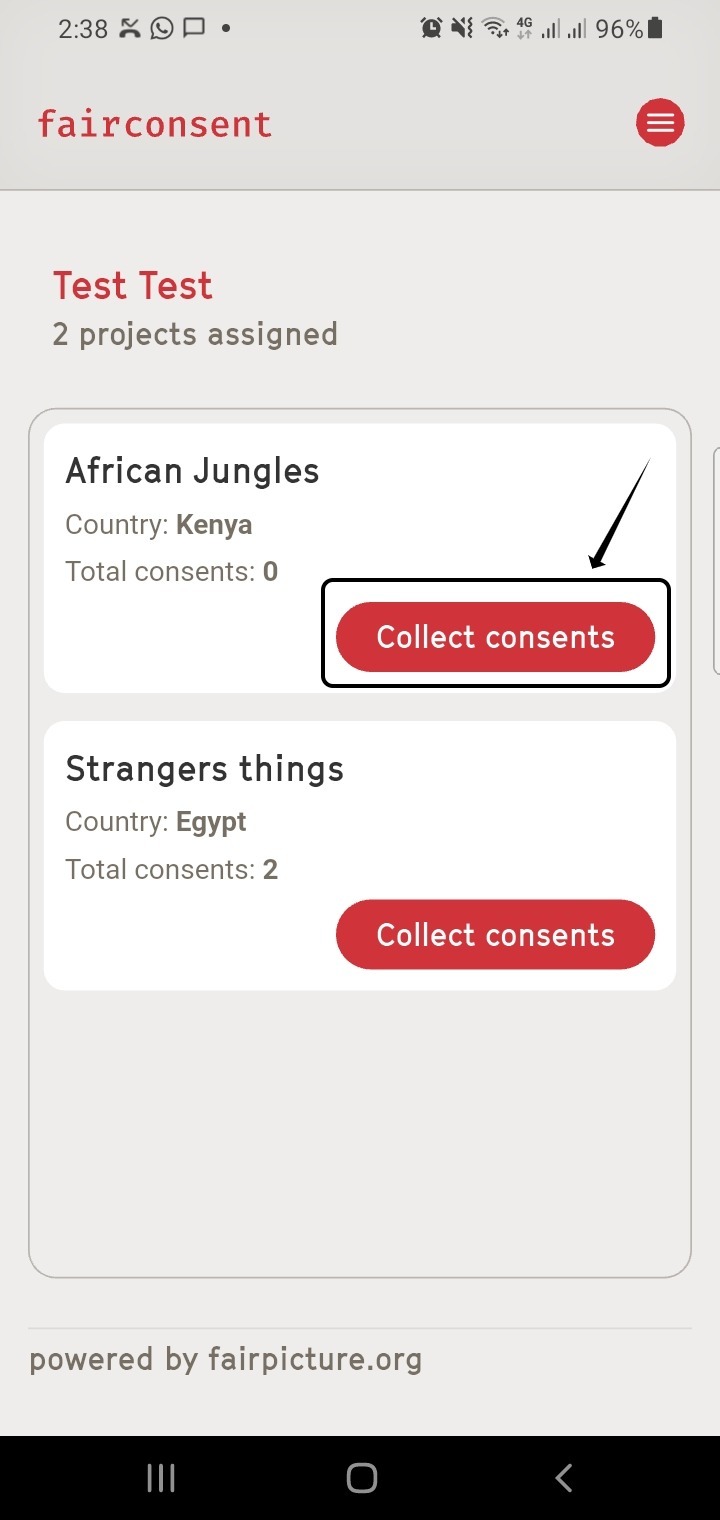
The Home View displays your available projects and consent collection options.
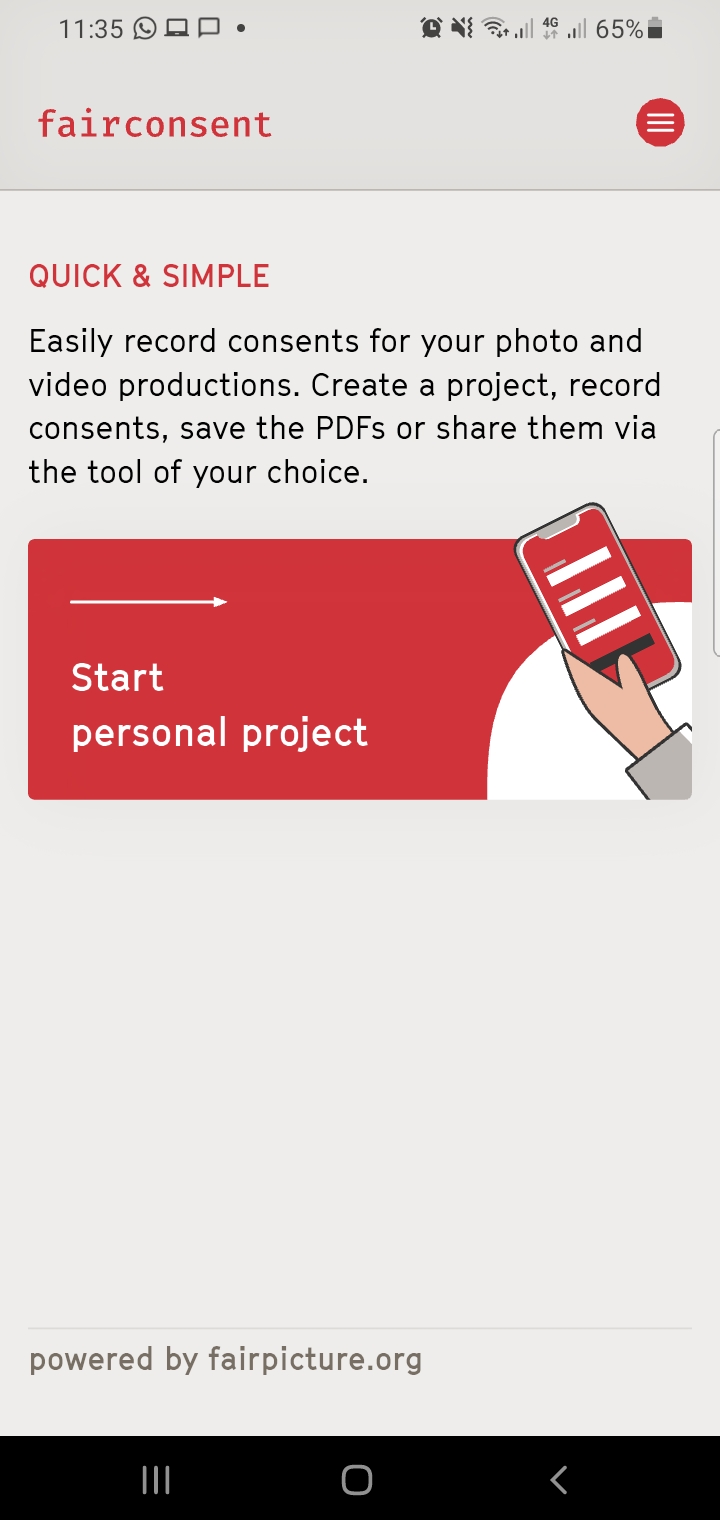
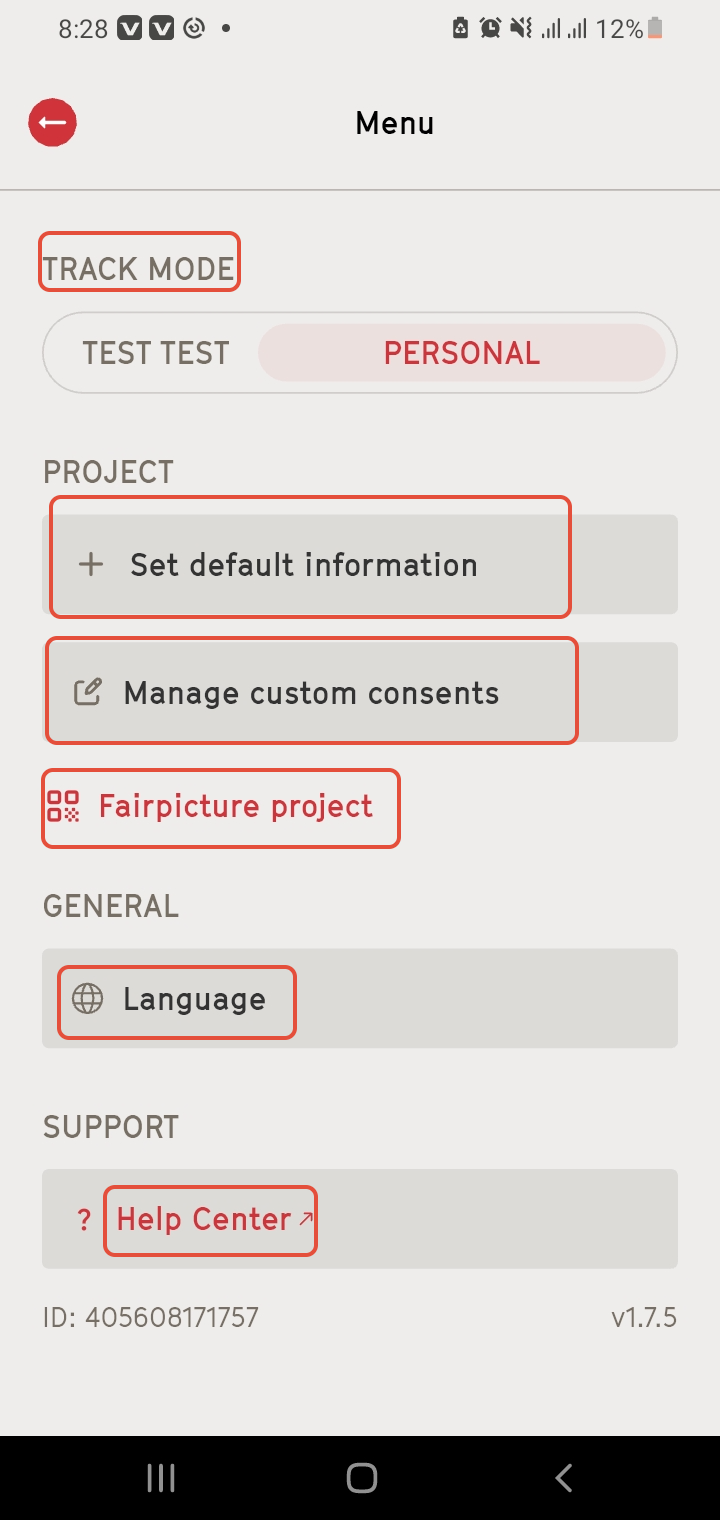
Tap the Settings icon in the upper-right corner to personalize and manage your FairConsent experience.
The Settings section includes:
- Track Mode: Switch between Personal mode and organization mode, this allows users to separate personal projects from organization workflows.
- Default Information: Configure default personal or collector information to speed up project setup and consent collection.
- Custom Consent Settings: Manage and upload Custom consent terms
- Fairpicture Project: Visual creators assigned to Fairpicture projects can scan the project's QR code directly from the app.
- General Settings: Select your preferred app language and other general preferences.
- Support: Access the Help Center for User guides, and Troubleshooting articles
Dashboard Experience by User Type
1. Individuals
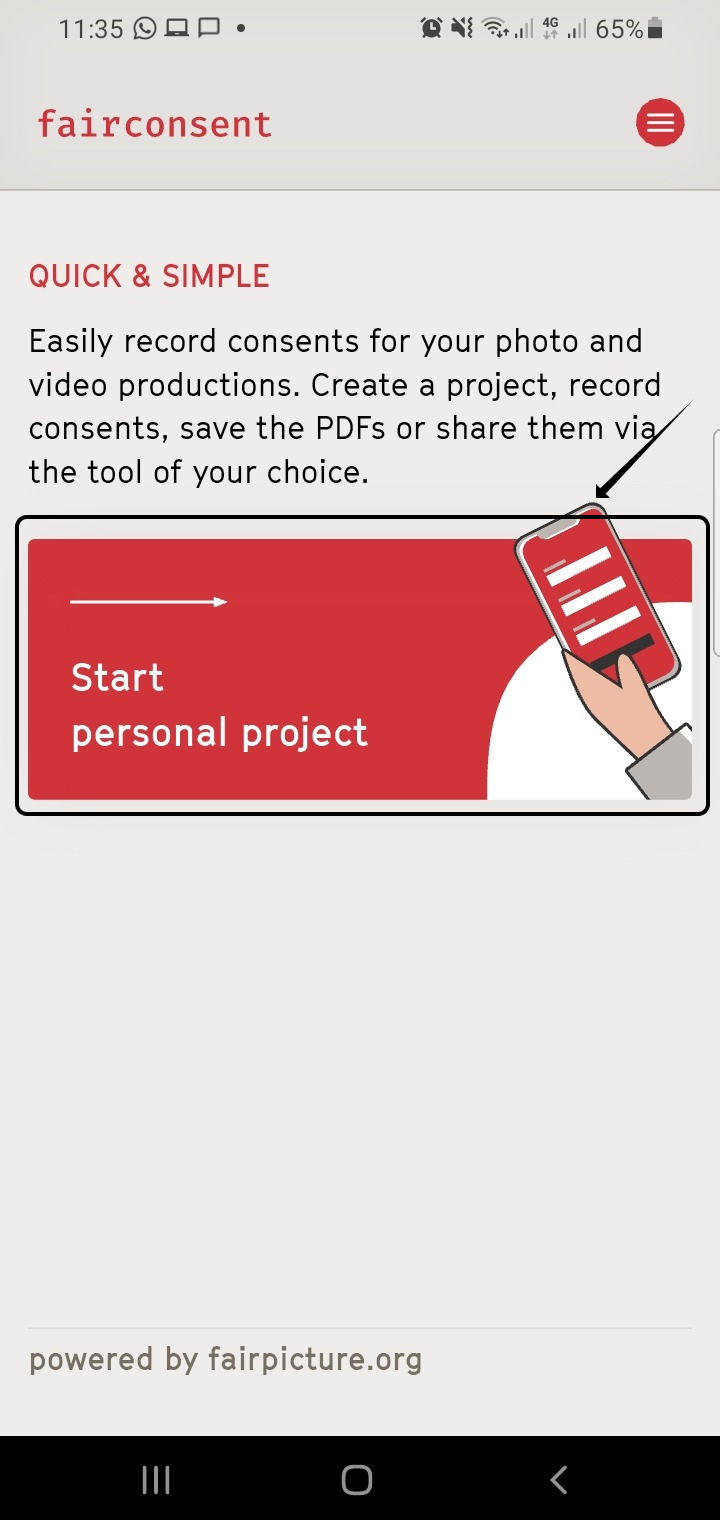
Start Personal Project: Tap Start Personal Project to begin a consent collection project as an independent user.
Users are guided through the consent collection process step by step.
2. Visual Creators (Fairpicture Projects)
To join a Fairpicture project:
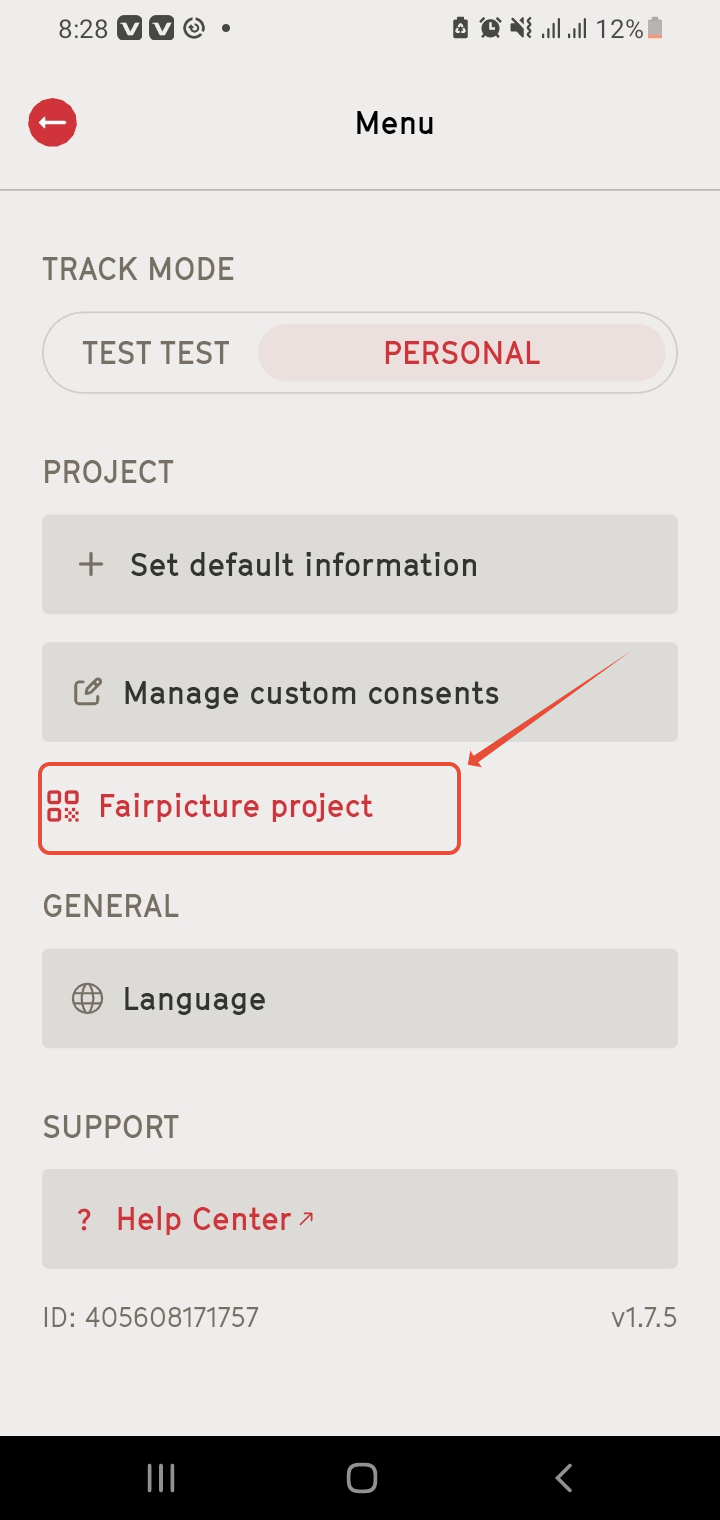
- Tap the Settings icon
- Under Personal Track Mode, select Fairpicture Project
- Scan the QR code provided in the Fairpicture platform
This links the app directly to the assigned project workflow.
Consents collected through this process sync with the Fairpicture project for streamlined collaboration and delivery.
3. Business & Collectors
Start collecting consents in the assigned projects from the admin/managers in the platform. This projects appears when an Admin or a Manager assigns a project to a collector.
Collectors can open the assigned project and begin recording consents directly in the app.
Need More Help?
You can access the Help Center in the settings. There you can find additional guides, troubleshooting articles, and support resources.
Also you can contact support: customersupport@fairpicture.org