---
title: Project Overview
description: How to navigate Project Overview page
---
[Skip to content](https://help.fairpicture.org/support/solutions/articles/101000540416#main-content)
English
Show submenu for translations

Open main navigation
Close main navigation
- English
Show submenu for translations
- Contact us
Contact us
How can we help you?
- There are no suggestions because the search field is empty.
1. [Fairpicture Help Center](https://help.fairpicture.org/support?hsLang=en)
2. [FairConsent App and Platform](https://help.fairpicture.org/support/fairconsent-app-and-platform?hsLang=en)
3. [02 Getting Started](https://help.fairpicture.org/support/fairconsent-app-and-platform?hsLang=en#02-getting-started)
# Project Overview
After entering the project data, the **FairConsent app** provides an organized overview to manage your data.
Here’s how to access and utilize the different functions of the **Project Overview:**
- At the start of each project, the Project Overview will be displayed once you've been assigned a project.
- After recording consents, tap **“Done”**
- This action will automatically redirect you to the **Project Overview**.
### **Project Overview Functions**
#### **Record (Additional) Consents**
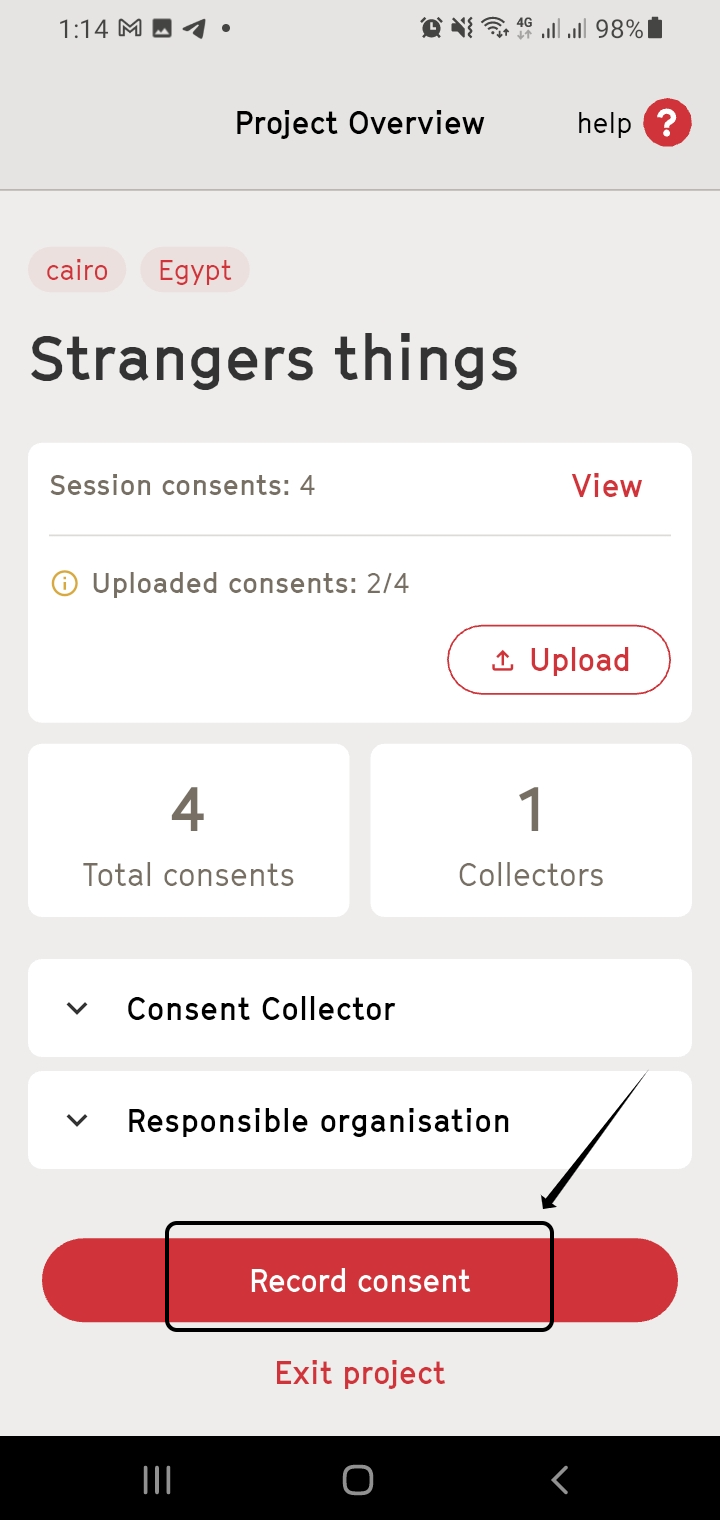
- You can start/continue recording consents by tapping **“Record consent”** on the Project Overview screen.
#### **View Recorded Consents**
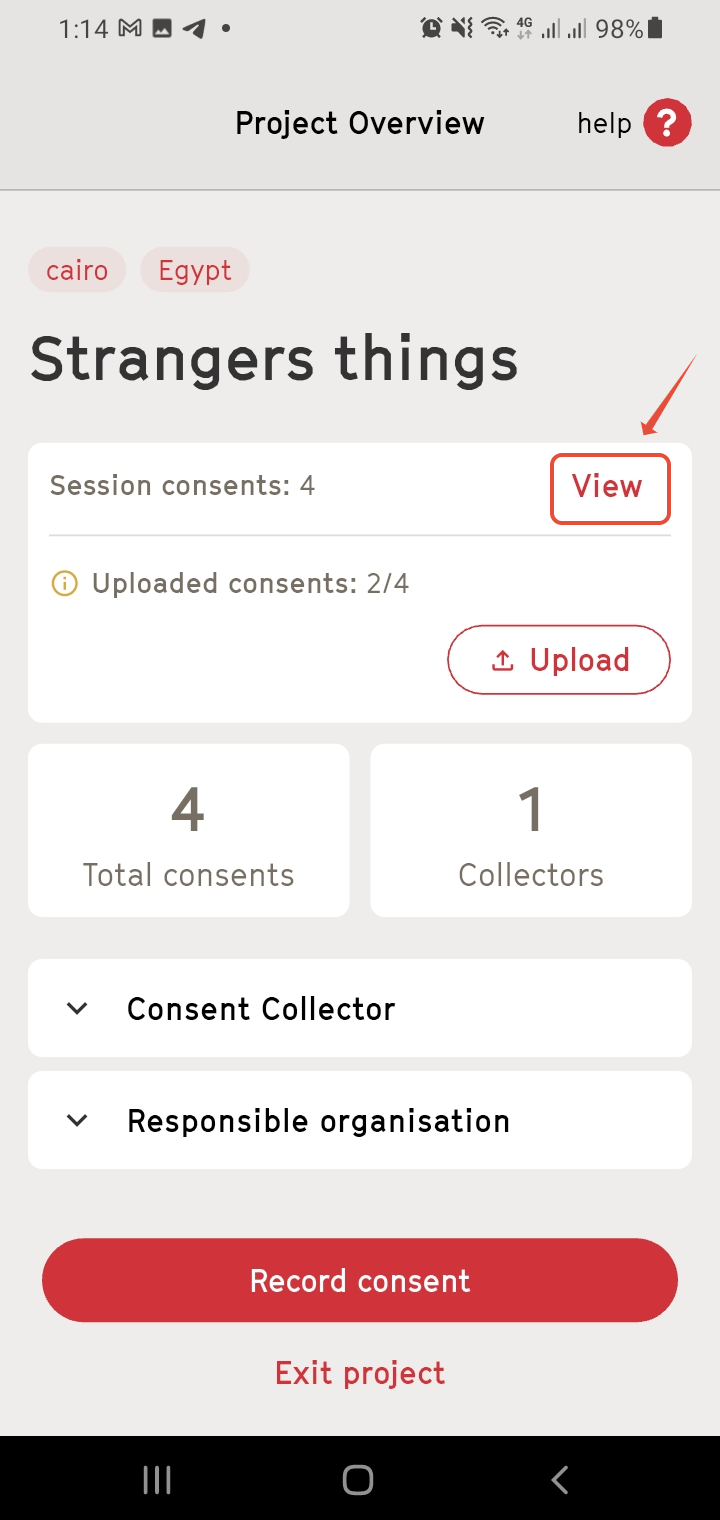
- On the Project Overview screen, tap **“View”** to see a list of all recorded consents (Uploaded & Not uploaded)
### **Features in the Recorded Consent Overview**
#### **1. List of Recorded Consents**
- Displays:
- Names of individuals.
- Consent type (e.g.,Adult, Adult Ward, Child, Witness)
#### **2. Edit Consents**
- Tap on the consent to:
- Edit all information.
- Add additional children or wards, if applicable. [Learn how to add consent of children or wards](https://help.fairpicture.org/support/solutions/articles/101000540254?hsLang=en)
- Click on update to reflect the changes
#### **3. Delete Consents**
- Tap the **trash icon** next to any record to delete it.

**Note**: Consents that are uploaded to the FairConsent platform cannot be edited anymore.
### **Need More Help?**
For any questions or support, reach out to us at [customersupport@fairpicture.org](mailto:customersupport@fairpicture.org)
- [FAQ for Clients](https://help.fairpicture.org/support/faq-for-clients?hsLang=en#main-content)
- [Services](https://help.fairpicture.org/support/faq-for-clients?hsLang=en#services)
- [Prices](https://help.fairpicture.org/support/faq-for-clients?hsLang=en#prices)
- [Starting a project](https://help.fairpicture.org/support/faq-for-clients?hsLang=en#starting-a-project)
- [FAQ in Projects](https://help.fairpicture.org/support/faq-for-clients?hsLang=en#faq-in-projects)
- [Platform Tutorials](https://help.fairpicture.org/support/platform-tutorials?hsLang=en#main-content)
- [Post-production tutorials](https://help.fairpicture.org/support/platform-tutorials?hsLang=en#post-production-tutorials)
- [Platform tutorials](https://help.fairpicture.org/support/platform-tutorials?hsLang=en#platform-tutorials)
- [FAQ for Visual Creators](https://help.fairpicture.org/support/faq-for-visual-creators?hsLang=en#main-content)
- [Rates and Payment](https://help.fairpicture.org/support/faq-for-visual-creators?hsLang=en#rates-and-payment)
- [Getting started on the platform](https://help.fairpicture.org/support/faq-for-visual-creators?hsLang=en#getting-started-on-the-platform)
- [Services](https://help.fairpicture.org/support/faq-for-visual-creators?hsLang=en#services)
- [VC questions](https://help.fairpicture.org/support/faq-for-visual-creators?hsLang=en#vc-questions)
- [FairConsent App and Platform](https://help.fairpicture.org/support/fairconsent-app-and-platform?hsLang=en#main-content)
- [Subscription & Billing](https://help.fairpicture.org/support/fairconsent-app-and-platform?hsLang=en#subscription-billing)
- [FairConsent Platform](https://help.fairpicture.org/support/fairconsent-app-and-platform?hsLang=en#fairconsent-platform)
- [05 Roles Access and Data Boundaries](https://help.fairpicture.org/support/fairconsent-app-and-platform?hsLang=en#05-roles-access-and-data-boundaries)
- [Updates & Support](https://help.fairpicture.org/support/fairconsent-app-and-platform?hsLang=en#updates-support)
- [06 Risk, Limitations and Warnings](https://help.fairpicture.org/support/fairconsent-app-and-platform?hsLang=en#06-risk-limitations-and-warnings)
- [08 DAM Integrations](https://help.fairpicture.org/support/fairconsent-app-and-platform?hsLang=en#08-dam-integrations)
- [Frequently Asked Questions (FAQ)](https://help.fairpicture.org/support/fairconsent-app-and-platform?hsLang=en#frequently-asked-questions-faq)
- [02 Getting Started](https://help.fairpicture.org/support/fairconsent-app-and-platform?hsLang=en#02-getting-started)
- [04 FairConsent Platform](https://help.fairpicture.org/support/fairconsent-app-and-platform?hsLang=en#04-fairconsent-platform)
- [FairConsent App](https://help.fairpicture.org/support/fairconsent-app-and-platform?hsLang=en#fairconsent-app)
- [01 User Experience Overview](https://help.fairpicture.org/support/fairconsent-app-and-platform?hsLang=en#01-user-experience-overview)
- [07 Consent Links Beta](https://help.fairpicture.org/support/fairconsent-app-and-platform?hsLang=en#07-consent-links-beta)
- [03 FairConsent App](https://help.fairpicture.org/support/fairconsent-app-and-platform?hsLang=en#03-fairconsent-app)
- [Content Production (Creators)](https://help.fairpicture.org/support/content-production-creators?hsLang=en#main-content)
- [Review and payment](https://help.fairpicture.org/support/content-production-creators?hsLang=en#review-and-payment)
- [What we offer and how we work for creators](https://help.fairpicture.org/support/content-production-creators?hsLang=en#what-we-offer-and-how-we-work-for-creators)
- [Getting started on the platform for visual creators](https://help.fairpicture.org/support/content-production-creators?hsLang=en#getting-started-on-the-platform-for-visual-creators)
- [Project organisation](https://help.fairpicture.org/support/content-production-creators?hsLang=en#project-organisation)
- [FairConsent for Fairpicture Projects](https://help.fairpicture.org/support/content-production-creators?hsLang=en#fairconsent-for-fairpicture-projects)
- [Production and post-production](https://help.fairpicture.org/support/content-production-creators?hsLang=en#production-and-post-production)
- [Project brief & deliverables](https://help.fairpicture.org/support/content-production-creators?hsLang=en#project-brief-deliverables)
- [Content Production (Clients)](https://help.fairpicture.org/support/content-production-clients?hsLang=en#main-content)
- [Getting started on the platform for clients](https://help.fairpicture.org/support/content-production-clients?hsLang=en#getting-started-on-the-platform-for-clients)
- [Starting a project](https://help.fairpicture.org/support/content-production-clients?hsLang=en#starting-a-project)
- [Project organisation](https://help.fairpicture.org/support/content-production-clients?hsLang=en#project-organisation)
- [What we offer and how we work](https://help.fairpicture.org/support/content-production-clients?hsLang=en#what-we-offer-and-how-we-work)
- [Project brief](https://help.fairpicture.org/support/content-production-clients?hsLang=en#project-brief)
- [Consent](https://help.fairpicture.org/support/content-production-clients?hsLang=en#consent)
- [Image material](https://help.fairpicture.org/support/content-production-clients?hsLang=en#image-material)
- [Support for Project Managers](https://help.fairpicture.org/support/support-for-project-managers?hsLang=en#main-content)
- [Request and offer](https://help.fairpicture.org/support/support-for-project-managers?hsLang=en#request-and-offer)
- [Consent](https://help.fairpicture.org/support/support-for-project-managers?hsLang=en#consent)
- [Invoice and Payment](https://help.fairpicture.org/support/support-for-project-managers?hsLang=en#invoice-and-payment)
- [Image material](https://help.fairpicture.org/support/support-for-project-managers?hsLang=en#image-material)
- [Production](https://help.fairpicture.org/support/support-for-project-managers?hsLang=en#production)
[](https://fairpicture.org/static/img/fairpicture.svg)
[mailto:email@email.com](mailto:email@email.com)
Copyright © 2026, Fairpicture AG