
This guide explains how to integrate your FairConsent account with Canto DAM to automatically sync collected consents to your organization’s digital asset library.
Prerequisites:
Make sure:
- ✅ You have an active FairConsent subscription.
- ✅ You have admin access to your Canto DAM instance.
- ✅ You already created (or identified) the Canto folder where consents should be uploaded.
Step 1 – Go to Integrations
- Log in to your FairConsent Platform.
- From the left menu, navigate to Consent Management → Integrations.
- In the integrations list, find Canto and click Configure.
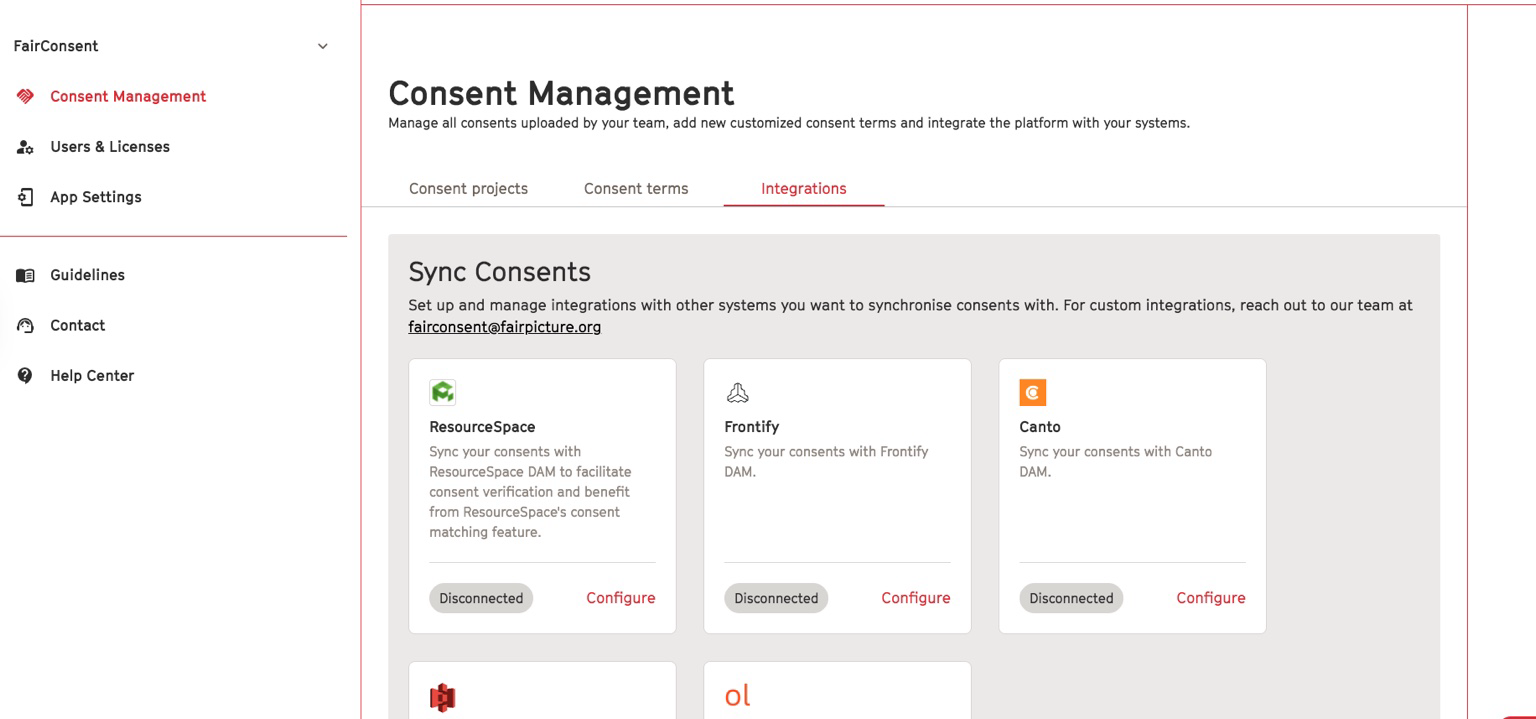
Step 2 – Enter your Canto credentials
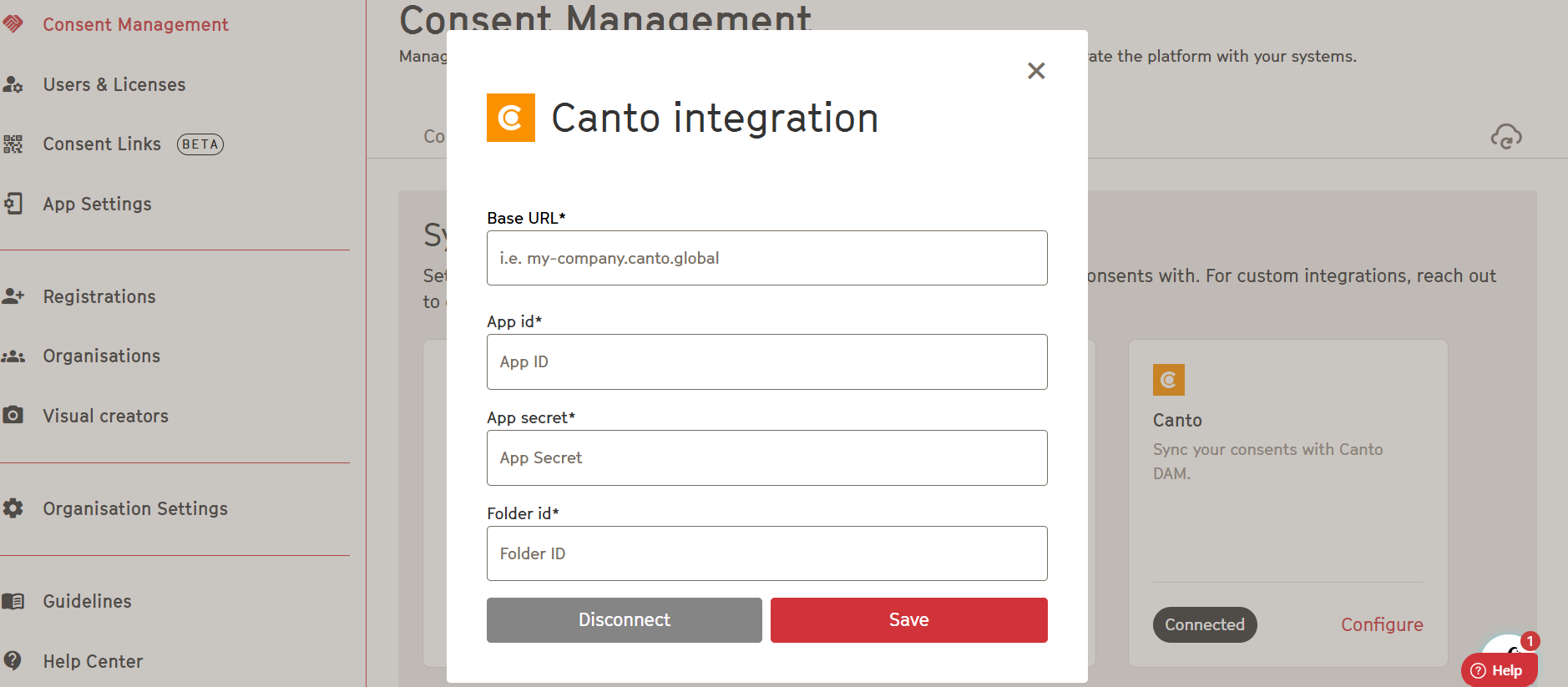
In the Canto configuration window, fill in the required fields:
Base URL
Description: Your Canto instance URL (e.g. my-company.canto.global)
App ID
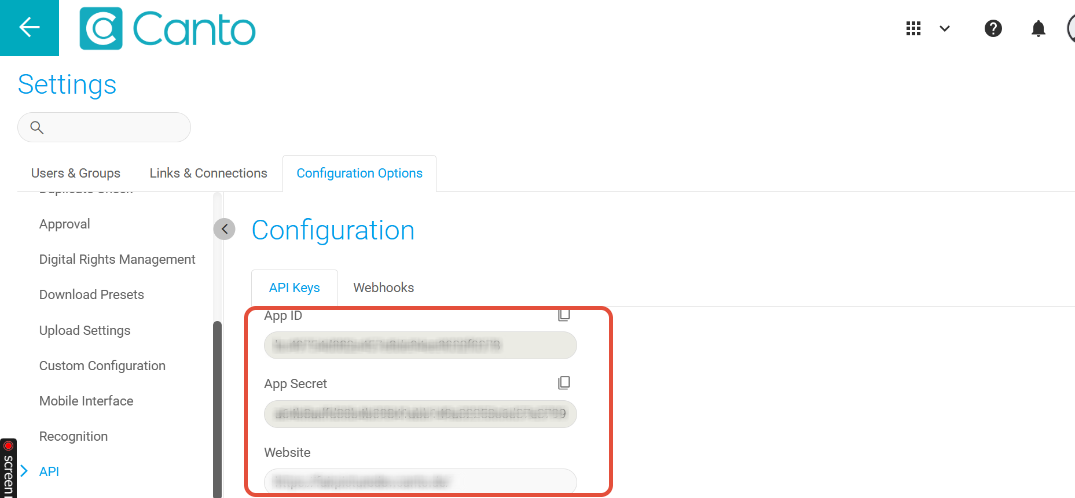
Description: App ID taken from Canto account
App secret
Description: App secret taken from the Canto account
Folder ID
Description: The folder ID where FairConsent will upload consents
Click Save once all fields are entered.
To find the Field Detail click settings, and go to Configuration Options -> API
Step 3 – Test the integration
After saving:
- Open the FairConsent mobile app.
- Collect a new consent (ensure the DAM is already configured).
- Once uploaded successfully, the consent should appear in both:
- Your FairConsent platform
- Your Canto DAM instance
If the consent appears in both systems, your integration is complete.
Troubleshooting
- ❌Upload failed
- Re-check your Base URL format.
- Ensure the App ID and App secret are the same as in Canto
- Verify the Folder ID exists and is accessible.
Need More Help?
For any questions or support, reach out to us at customersupport@fairpicture.org