
This article explains how to customize the labels used for consent data when it synchronizes from FairConsent to OrangeLogic. By mapping FairConsent’s default fields to your OrangeLogic Custom Fields, you ensure that important information, such as names, dates, and email addresses, appears under the correct metadata labels in your Digital Asset Management (OrangeLogic) system.
Prerequisites:
Before mapping your fields, make sure the following requirements are met:
- Integration is Active: Your OrangeLogic instance is already connected to FairConsent (see Integration Guide).
- Namespace: Make sure you added the correct namespace when you integrated Fairconsent with OrangeLogic
- Admin Permissions: You must be logged in as an Owner or Admin in FairConsent to access App Settings.
- Fields Exist in OrangeLogic: The metadata fields you want to sync to, must already be created in your OrangeLogic instance.
Step 1: Customize Your OrangeLogic Custom Fields
Before mapping fields in FairConsent, you need to create or identify the required metadata fields in Orange Logic and copy their exact names.
Note: If you have already created the required custom fields, you can skip this step and proceed to Step 2.
1. Log in to your OrangeLogic account
- Access your Orange Logic platform using an account with the necessary permissions.
2. Open a Consent Record
- Navigate to an existing Consent record within your system.
3. Edit the Layout
- Click on Edit Layout, then select Add / Create Field. (See Figure (1))
4. Create Custom Fields
- Add the required custom fields based on the metadata you want to sync from FairConsent (e.g., Giver name, Giver email). (See Figure (2))
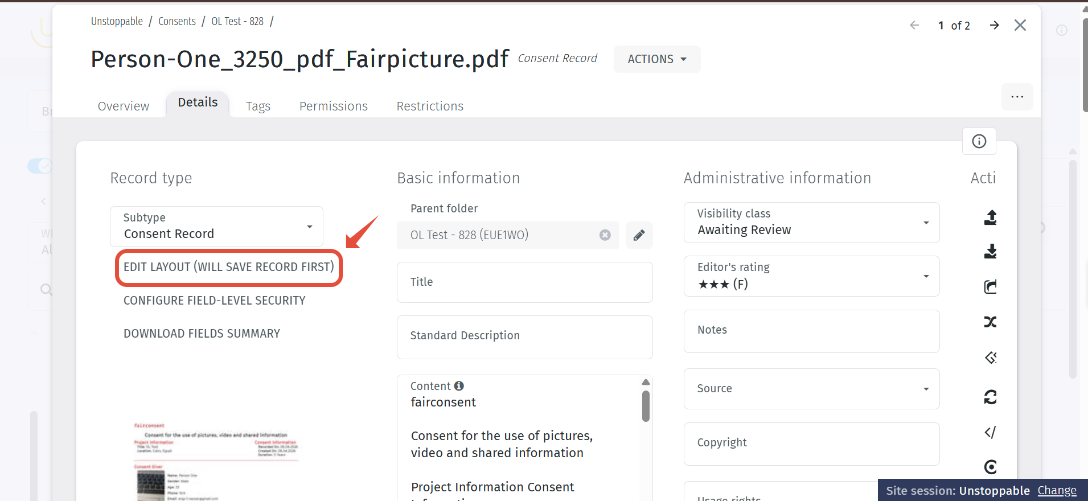
Figure (1)
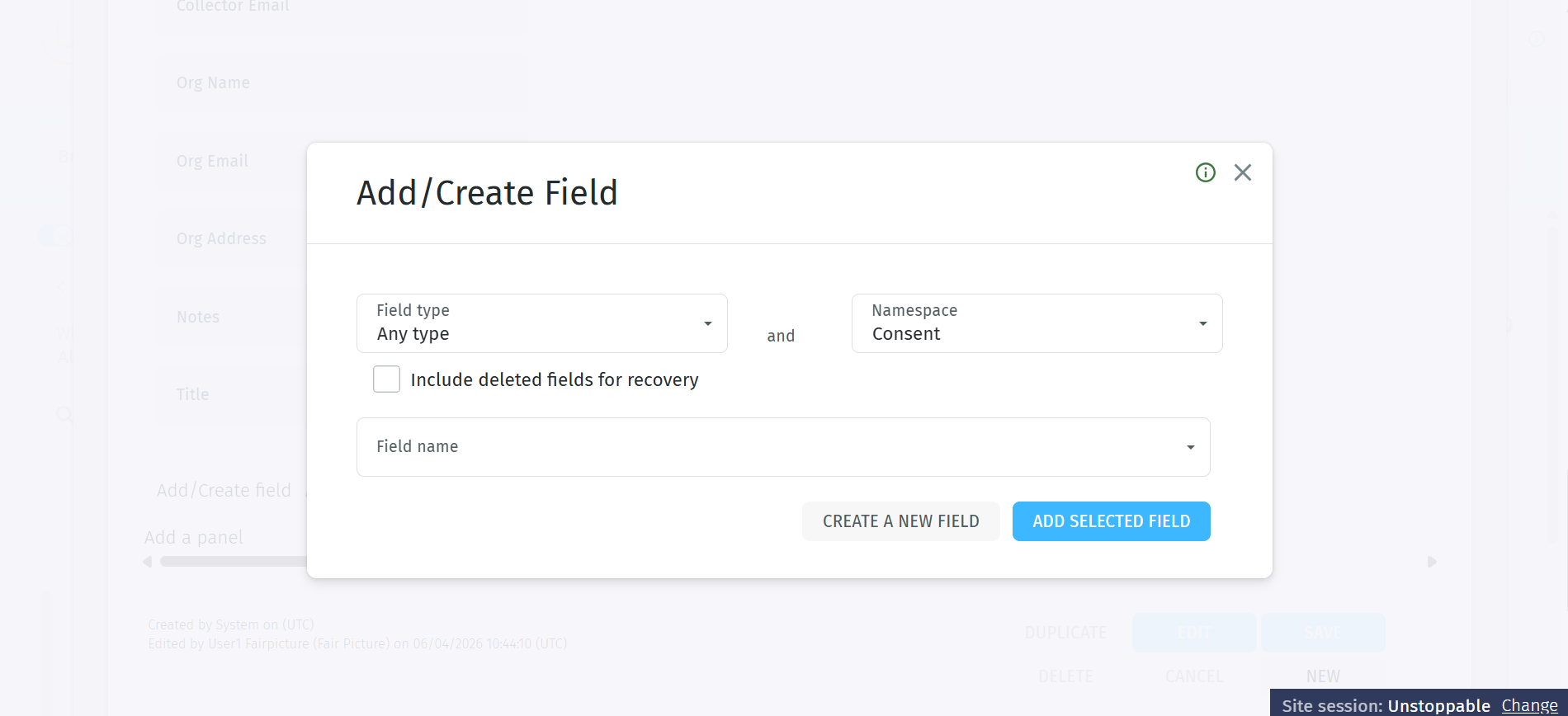
Figure (2)
Step 2: Map Fields in FairConsent Platform
Once you have created and copied the required metadata field names from OrangeLogic, you can map them to the default labels in the FairConsent platform.
Field mapping ensures that information collected in FairConsent automatically appears under the correct metadata fields in OrangeLogic when files are synchronized.
Steps to Map Fields
- Log in to the FairConsent platform.
- From the left-hand sidebar, click App Settings.
- Scroll down to the Metadata Field Mapping section.
- You will see a list of FairConsent’s default fields (for example: Consent Giver Name).
- In the input field next to “Consent Giver Name”, paste the corresponding OrangeLogic metadata field name (for example: Giver Name).
- Repeat this process for any additional fields you want to map.
- Once you have mapped all the required fields, click Save.
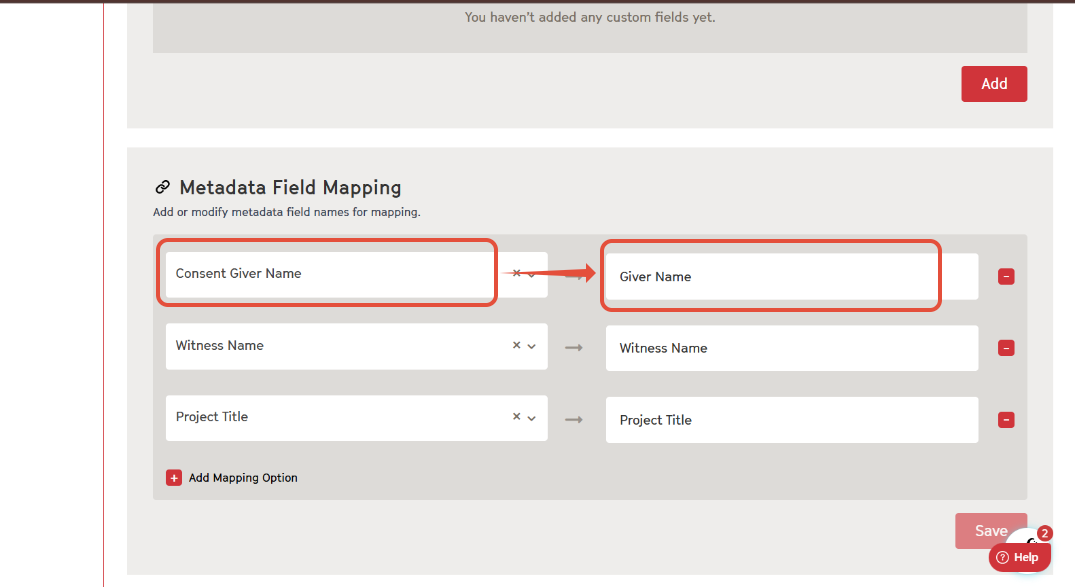
How it Works:
When a user (collector) uploads a consent form to the platform, FairConsent looks at your mapping table. If you have mapped "Consent Giver Name" to "Giver Name", FairConsent will tell OrangeLogic:
"Take the value from the Name field and put it into the metadata field in OrangeLogic"
Troubleshooting
Data is Missing in Orange Logic
If your data is not appearing in Orange Logic, check the following:
1. Verify field name accuracy
- Ensure that the metadata field name entered in FairConsent exactly matches the field name in Orange Logic. Small differences in spelling, spacing, or formatting can prevent the data from syncing correctly.
2. Confirm namespace and folder configuration
Make sure that:
- The correct namespace is selected
- The correct folder ID is configured
Incorrect settings here may result in data not being stored or displayed in the expected location.
Need More Help?
For any questions or support, reach out to us at customersupport@fairpicture.org