
This article explains how to invite users, assign roles, and manage access within the FairConsent platform. Proper user management ensures that each team member has the correct level of access based on their responsibilities.
You can invite new users to your organization and assign them roles such as Collector, Manager, or Admin, depending on their tasks.
Invite Collectors
Collectors are typically responsible for gathering consent using the FairConsent app.
Open the FairConsent platform
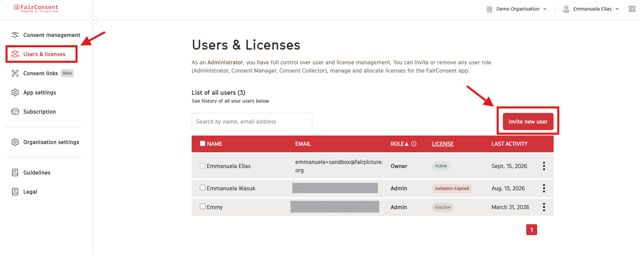
- Go to the "Users & Licenses" section.
Send an invitation
- Click "Invite new user".
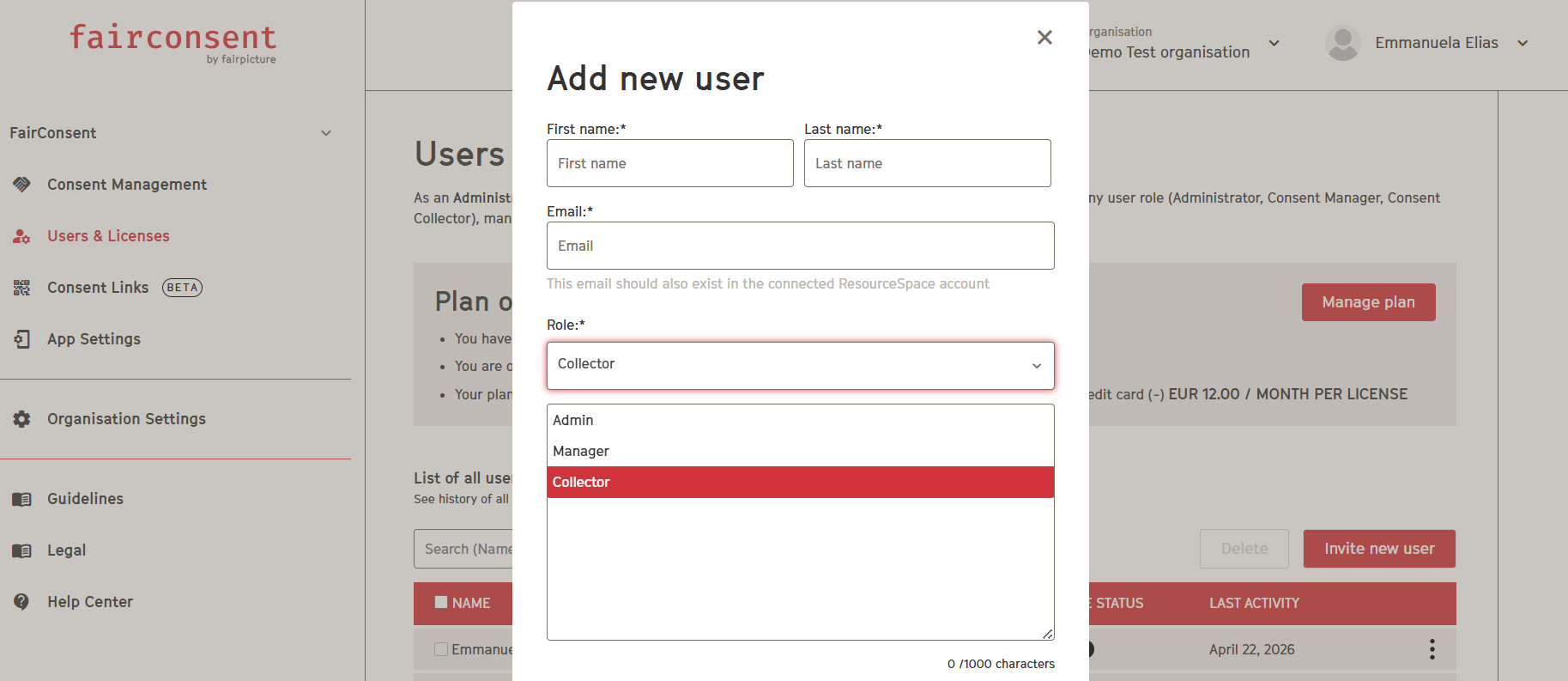
- Enter the collector’s name, email address, and role.
Accessing the app
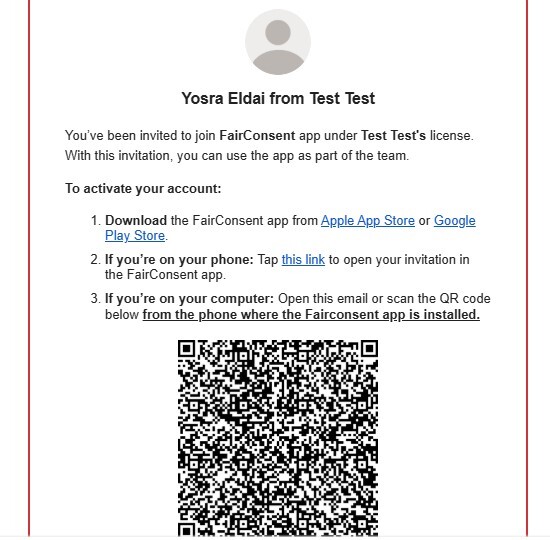
The collector will receive an email that includes a link and a QR code.
- If the collector is on mobile: Tap the link directly from the email
- If the collector is on computer/laptop: Scan the QR code using your phone’s camera
Complete setup
- After installing the app and accepting the invitation, the collector becomes active and starts collecting consent.
Invite Admins and Managers
Admins and Managers typically manage projects, users, and platform settings.
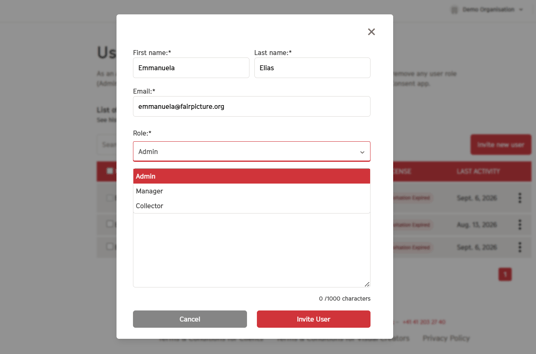
- Click Invite New Users
- Enter the user’s email address
- Assign the appropriate role (Admin or Manager)
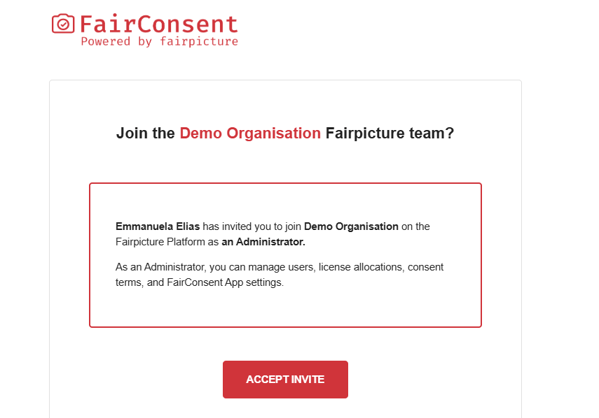
- The user will receive an invitation email
- They must accept the invitation and set a password to access the platform
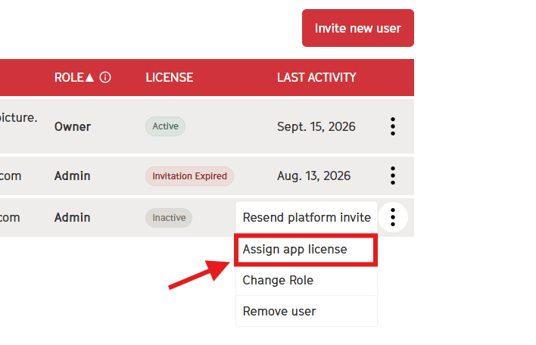
If an Admin or a Manager also needs to access the app as a Collector:
- Locate the user in the "Users & License" section
- Click the three-dot menu next to their name
- Select "Assign app license"
- They will receive an email that includes a link and a QR code as well.
User Roles Overview
Understanding roles helps ensure proper access control:
Collector
- Uses the mobile app to collect consent from individuals
Manager
- Oversees projects and may manage collectors and workflows
Admin
- Has full access, including managing users, billing, integrations, and platform settings, except for "Manage Roles" and "Security & SSO," which can only be managed by the owner.
Note: Navigate to the circle next to the role to view the Roles and Permissions table
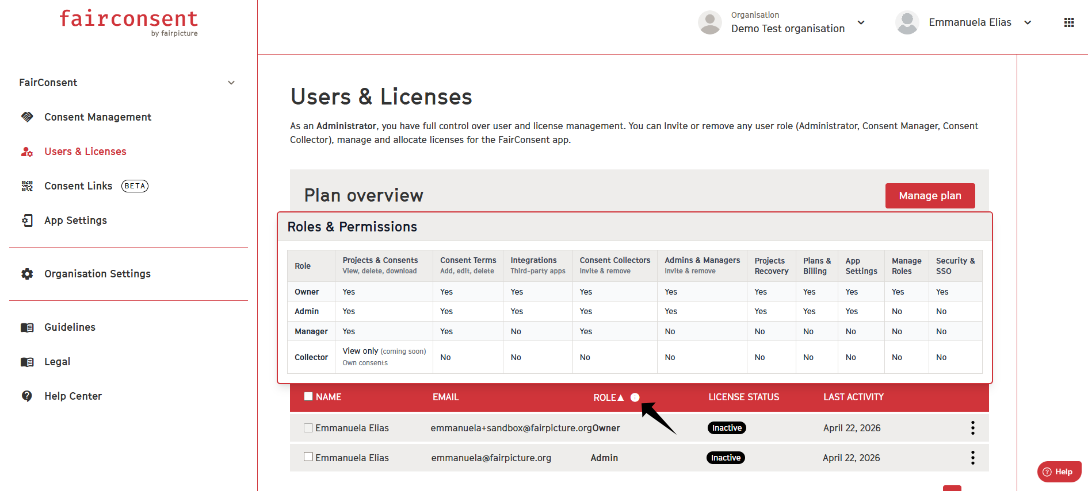
User Overview & Management
From the "Users & License" section, you can:
- View all active and pending users
- Monitor user status and roles
- Assign app licenses
- Remove users to free up licenses
- Reassign roles as needed
Need More Help?
If you need further assistance, please contact customersupport@fairpicture.org