Confirming & Uploading Consent (Collectors)
In FairConsent, consent givers can confirm their consent using one or more of three available confirmation methods. Organization Owners and Admins can configure which confirmation methods are available, allowing consent givers to choose their preferred option during the consent process.
This step follows the “Explaining Consent Terms” process. After the consent terms have been reviewed and confirmed, the consent giver proceeds to confirm their consent using one or more of the methods below.
Available Confirmation Methods
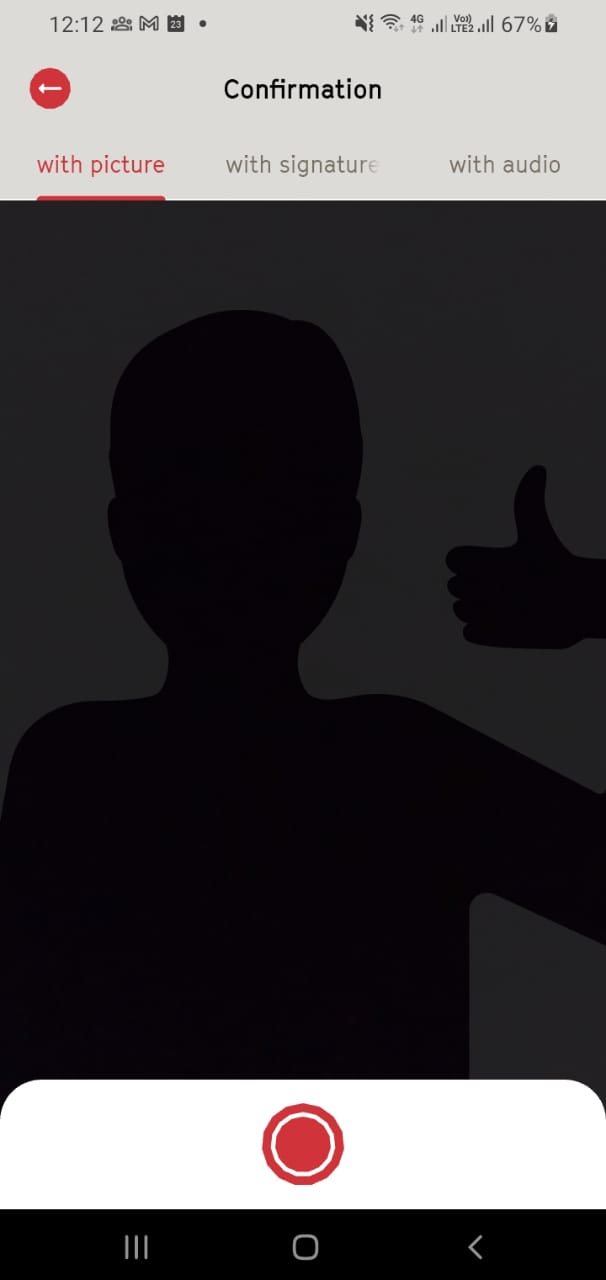
1. Picture Confirmation (Thumbs Up)
- Tap “With Picture” above
- Ask the consent giver to pose with a thumbs-up gesture
- Press the capture button to take the photo
- Choose to Retake or Save the image
2. Signature Confirmation
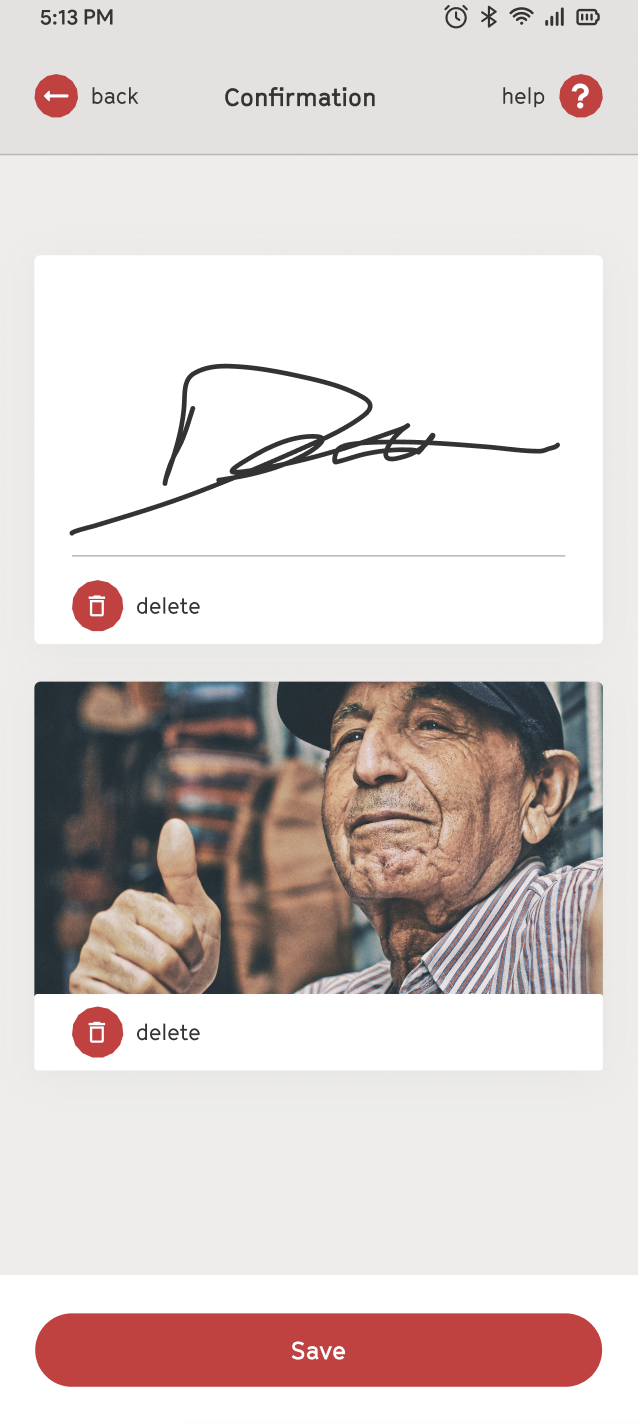
- Tap “With Signature” above
- Ask the consent givers to sign in the provided box using their finger or stylus
- Optionally, add a photo for additional verification
- Tap Save to confirm or Delete to redo
3. Audio Confirmation
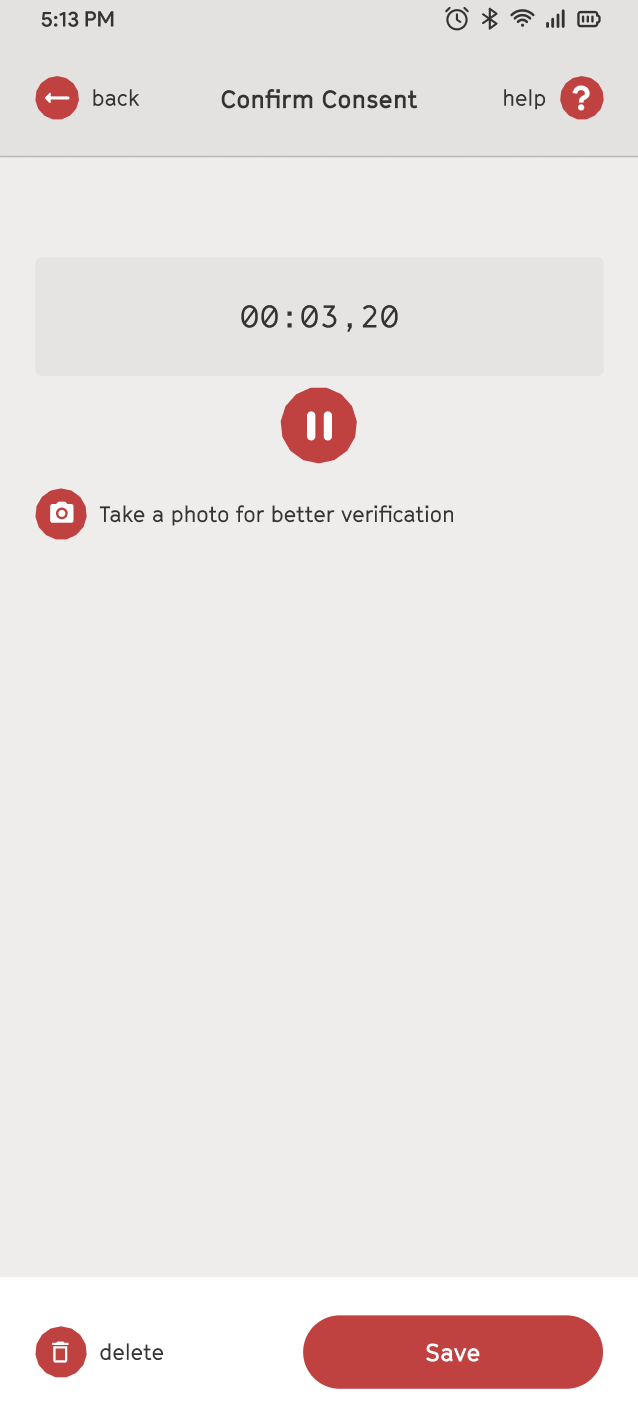
- Tap “With Audio” above
- Ask the consent givers to record their consent using the record button
- Optionally, add a photo for additional verification
- Tap Save to confirm or Delete to redo
Upload Consent Forms
After recording consent in the FairConsent app, you must tap Upload to sync the collected consent forms to the platform.
Recorded consents remain stored locally in the app until they are uploaded. They will not appear on the platform or sync with your organization records until the upload is completed.
Steps to Upload Consent Forms
- Open the assigned project in the FairConsent app
- Review your recorded consents with clicking on "View"
- Tap Upload
Once successful, the consents will become visible on the platform.
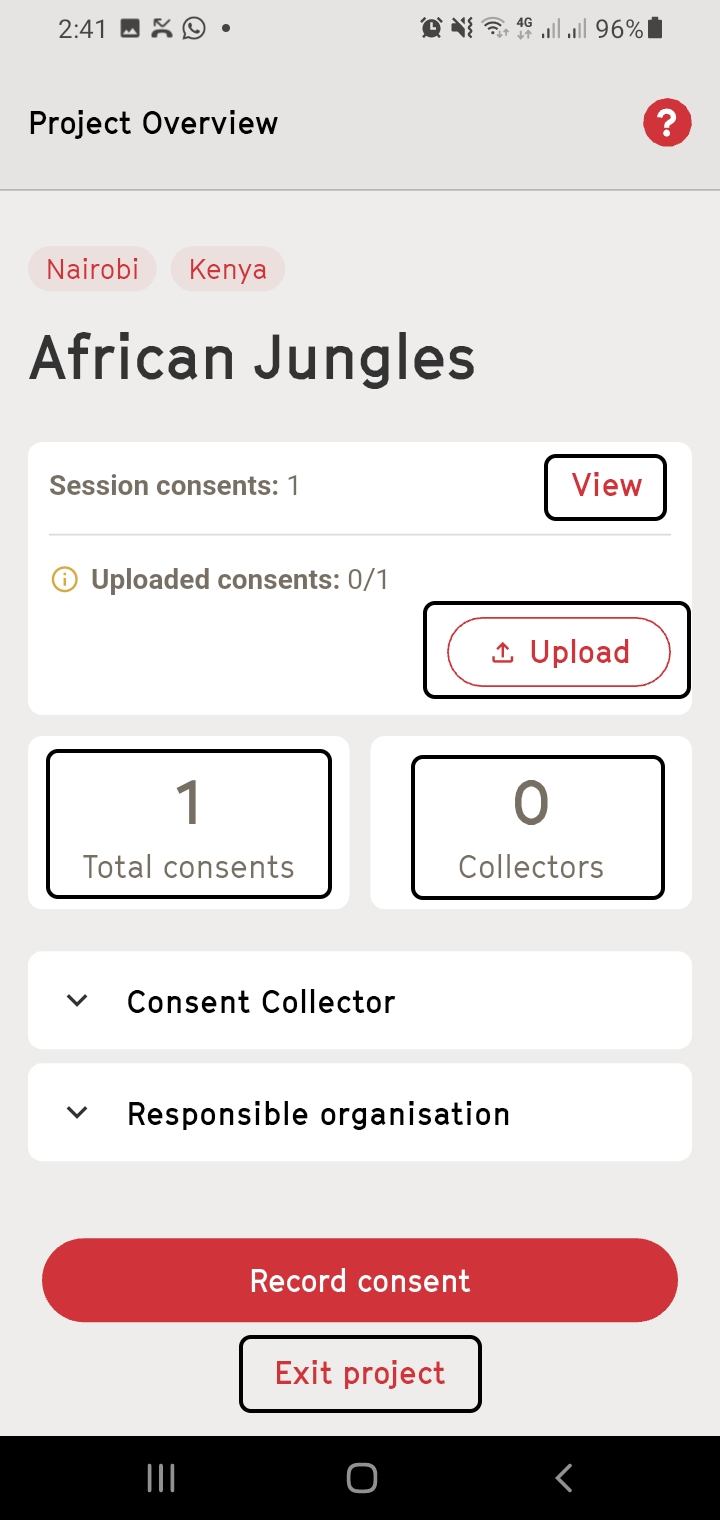
Total Consents
- Shows the total number of consents recorded in the project.
Collectors
- The project can be assigned to multiple users and it will count the number of collectors that have uploaded at least a single consent
-
Click on Exit Project and you'll get back to the assigned project view
-
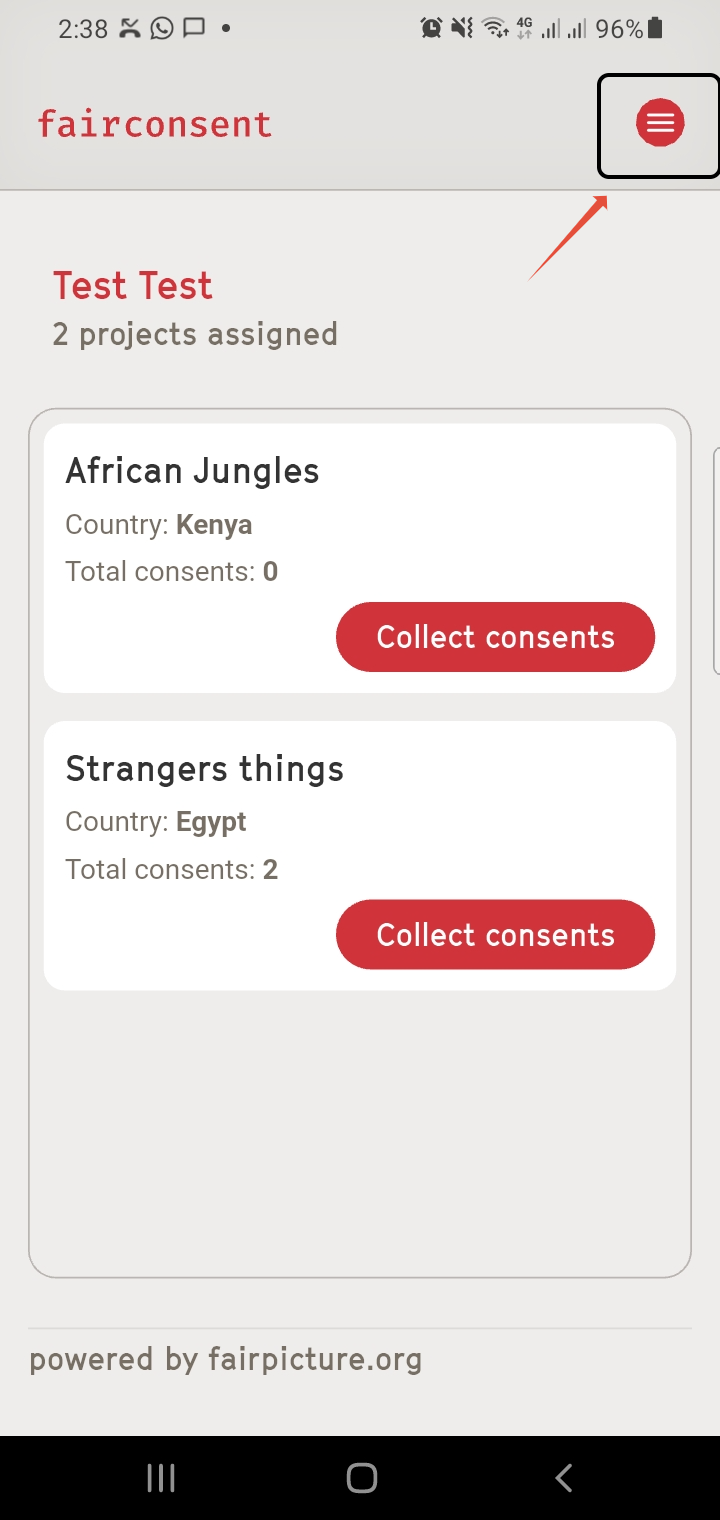
On the top right you can click on the Menu to get to settings